Clan Logos · 6 min read · Updated November 21, 2026
How to Make a Gaming Logo That Looks Professional
A good gaming logo should stay sharp at small sizes, feel easy to recognize, and represent your clan or channel identity without clutter.
By TheLogoBase Team · [email protected]
1. Start With a Clear Gaming Logo Concept
Before choosing colors or adding effects, decide what your gaming logo needs to represent. A competitive esports roster usually calls for a sharper, structured look than a casual solo stream or community Discord server.
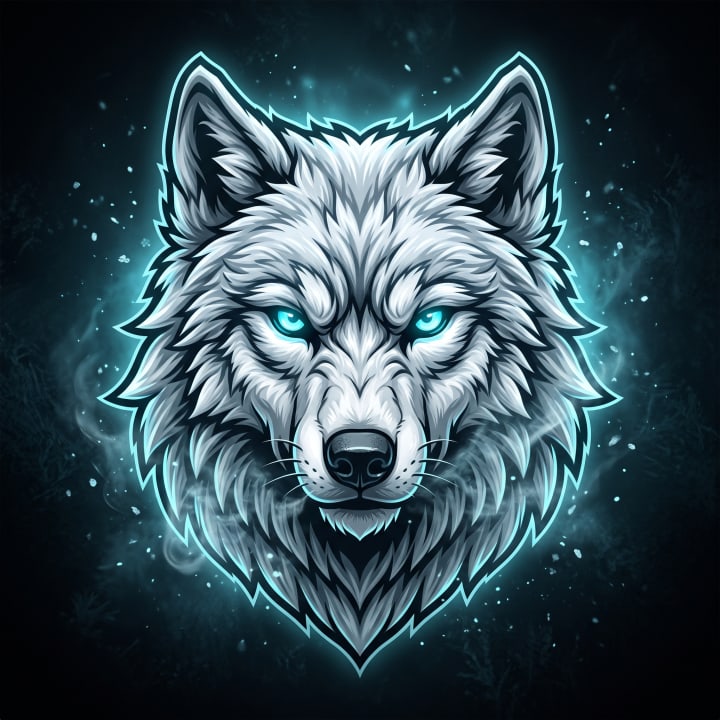
Pick one clear visual direction—aggressive, tactical, futuristic, or minimal—so every design choice supports the same look. Mascot characters such as wolves, dragons, falcons, and tactical warriors work well when they match your squad name, while shields and crests suit organized clan branding.
- Pick a short team name or tag before opening the layout.
- Commit to one central mascot, crest, or symbol rather than stacking weapons and multiple characters together.
- Plan your primary color direction early based on where the logo will live—Discord icons, YouTube channels, or tournament overlays.
2. Choose the Right Colors, Fonts, and Effects
Color sets the mood faster than any detail inside the artwork. Red and obsidian feel aggressive, cobalt blue and silver read clean and futuristic, purple leans mysterious, and toxic green fits tactical or cyber themes. Start with two main colors plus one controlled highlight so small avatars never look muddy.
Typography carries equal weight. Choose bold, heavy faces that keep their shape under a detailed mascot—such as Russo One, Teko, Bebas Neue, Black Ops One, Orbitron, or Shojumaru—paired with a dark outline stroke to separate letters from the backdrop. Subtle curved text and tight neon glow can frame a crest nicely, provided the glow never bleeds across neighboring letters.
- Keep clan lettering bold, high-contrast, and short.
- Match text highlight hues directly with rim lighting already inside the mascot.
- Verify the layout looks balanced with glow switched off before dialing effects back in.
3. Design and Customize Directly in the Browser
You do not need heavy desktop design software to put a sharp gaming mark together. Inside TheLogoBase Studio Editor (/editor), you can start from any high-contrast mascot or emblem in the gallery, type your gamertag using custom esports fonts, curve text along an arc, layer crest badges, and preview circular Discord framing live on an HTML5 Canvas.
Once your layout feels balanced, export a watermark-free PNG in 1080p (1K) or 2048px (2K)—pick 2048px when you want extra headroom for banners or jerseys. If you need a cutout over a stream overlay, the Remove BG tool runs locally in your browser via WebAssembly to export a Transparent PNG, with cleanest edges on sharp, high-contrast mascots.
4. Check Small-Size Legibility Before Exporting
A logo that looks crisp full-screen on a monitor can quickly turn unreadable inside a compact Discord member list or YouTube comment circle. Always keep faces, helmets, and key lettering inside the inner 78% circle so automated circular profile crops never clip important edges, and preview how the silhouette holds up around 32 px to 64 px.
Keep file format matched to where the image goes next. Direct gallery downloads save as 2048 × 2048 px (2K), 1:1 JPG images on finished dark backdrops—ideal for fast square and circular profile uploads—while Studio Editor lets you customize text and export clean PNGs or local Transparent PNG cutouts whenever overlays require no background.
- Zoom out until the canvas matches a mobile chat avatar—check that the clan tag and mascot silhouette stay clear.
- Confirm every corner detail sits inside the inner 78% circular safe zone.
- Pick direct 2K JPG for profile slots and Studio PNG when layering custom text or transparency.
Gaming Logo Design Quick Reference
| Setting | Recommended | Why It Matters |
|---|---|---|
| Gallery Master Size | 2048 × 2048 px | 1:1 square 2K JPG on a solid dark backdrop. |
| Color Budget | 2–3 Core Colors | Two primary hues plus one bright highlight keeps profiles crisp. |
| Profile Safe Zone | Inner 78% Circle | Protects helmets, faces, and clan tags from circular avatar crops. |
| Small-Size Check | 32 – 64 px | Minimum preview scale to catch thin strokes and crowded text. |
| Studio Export | 1080p or 2048px PNG | Watermark-free browser export with optional local Transparent PNG. |